Team management in the Account area
Last updated: August 2026 Audience: Admins, team admins, and members who accept invitations or need to understand team settings.
Beta: https://account-preview.sparks.team → Team
General profile and subscription topics: Account settings and profile.
Create or join an organization: Self-registration.
Roles in the organization
| Role | Typical permissions |
|---|---|
| Admin | Full team and org settings, manage members, subscription (per policy) |
| Team Admin | Same as admin where the policy allows |
| Member | Use the main app; no team management (unless invite is allowed) |
After self-registration you are Team Admin of your new organization. Via invitation you get the role chosen in the invite.
Members & invitations
Where: Account → Team.
Member list
Table with display name, email, and role. Admins/team admins can:
- Change role (Member / Team Admin / Admin)
- Remove from team (with confirmation)
Invite user
- Click Invite user.
- Enter email and role.
- Sparks sends an invitation email with link (
/signup/join?invitation=…).
The invitee sets name, login, and password, then confirms email — see Accept invitation.
Pending invitations
Not yet accepted invitations appear under Pending invitations. You can cancel invitation.
Rename organization
Where: Account → Team → Organization section.
Edit and save the display name. Internal slug may differ — use a slightly different spelling if there is a conflict.
Policy (who can invite / manage subscription)
Where: Account → Team → Policy.
| Setting | Values | Meaning |
|---|---|---|
| Can invite | Admin / Team Admin | Who may invite new members |
| Can manage subscription | Admin / Team Admin | Who may Buy subscription and Manage subscription (Stripe) |
Default is often Team Admin for both — your operator may differ.
Quotas & visibility
Where: Account → Team → Quotas & visibility.
| Setting | Description |
|---|---|
| Max members | Upper limit including pending invitations. Defaults depend on plan (Free/Pro) |
| Storage limit (MB) | Nextcloud/WebDAV quota for the organization |
| Monthly AI token quota | Cap for platform AI per calendar month (UTC): assistant, transcript summary, translation via IONOS/OVH. Org BYOK (third-party keys under AI models) does not count here |
| Hide public Matrix rooms | Hide Join team in the Matrix room list |
| Org members only in Matrix people search | Restrict people search to your organization |
Save with Save quotas.
Security policies
Where: Account → Team → Security policies.
Controls whether Matrix end-to-end encryption is used at all for the organization, and — if enabled — device verification and recovery key handling:
Matrix end-to-end encryption
| Setting | Behavior |
|---|---|
| On (default) | Members can use encrypted rooms; crypto is set up on login |
| Off | Matrix E2EE is disabled organization-wide. Clients skip crypto initialization, new encrypted rooms cannot be created, and E2EE options in the app (create room, Security settings, meeting “Start encrypted”, etc.) are hidden |
Existing already-encrypted rooms may remain partially readable depending on local keys; the organization deliberately opts for unencrypted Matrix communication.
Decision guide (tradeoffs): When E2EE makes sense, how it affects AI/MCP/recording, and admin scenarios — see End-to-end encryption → Decision guide.
Device verification
Only relevant when Matrix E2EE is enabled:
| Policy | Behavior |
|---|---|
| Comfortable (automatic) | New devices verified automatically; recovery key stored securely on server |
| Strict (manual verification) | Each new device verified manually via SAS/QR or recovery key; key not stored on server |
For end users: End-to-end encryption (including decision guide).
Meeting options (Town Hall & Webinar)
Where: Account → Team → Meeting options.
| Status | Meaning |
|---|---|
| Inactive | Town Hall and Webinar not selectable when creating events |
| Pro required | Buy Pro subscription and webinar add-on on the overview page |
| Active | Both formats enabled for the organization |
Note: One organization flag enables both formats together. Format details: Event and meeting options, Webinar registration.
Recording, transcription & AI (compliance)
Where: Account → Team → Recording, transcription & AI.
Organization-wide meeting rules:
| Area | Options (summary) |
|---|---|
| Recording | Allow; optional explicit participant consent |
| Transcription | Allow; optional consent requirement |
| Legal notice | HTTPS link to privacy/explanation |
| AI on transcripts | Internal (platform) and/or external provider — titles, disclaimer texts, optional privacy URL |
Hosts can only enable what is allowed here. Consent dialogs in meetings follow these settings.
Save: Save compliance settings.
AI models
Where: Account → Team → AI models section (#ai-models), just before AI usage.
Admin / team admin only. Choose which language models your team may use in Sparks. Members pick only from this list; personal API keys in app settings are gone.
| Setting | Meaning |
|---|---|
| Allowlist (IONOS / OVH) | Enable or disable platform models for your plan. With no saved list, all platform models of the plan apply. |
| Third-party providers | OpenAI, Anthropic, Azure, Gemini, … only with an org API key (write-only, never shown again). Without a key the provider does not appear in the app. |
| Default model | Used when a member has no personal choice yet, or their previous model is no longer allowed. |
| IONOS contract number | Optional, if you have several IONOS contracts (fixes “invalid issuer”). |
Save with Save models. Team admins can also open this section from the main app (Settings → AI Agent → Open team AI models).
IONOS and OVH keys stay platform credentials of the operator (not stored as org keys). Third-party org BYOK usage is billed by the provider and does not count against the monthly AI quota.
AI usage & quota
Where: Account → Team → AI usage section (#ai-usage).
📸 Screenshot:
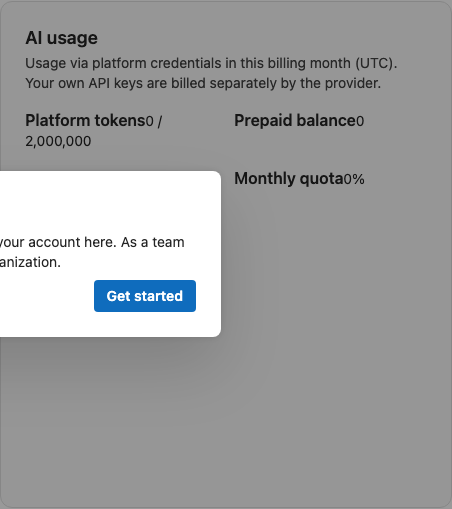
Shows consumption via platform credentials (IONOS/OVH) in the current billing month (UTC). Org BYOK (third-party keys under AI models) is billed by the provider and appears in the BYOK bucket, not the platform pool.
Metrics
| Display | Meaning |
|---|---|
| Platform tokens | Tokens used this month |
| Prepaid balance | Remaining tokens from purchased prepaid packs |
| Requests | Total AI requests |
| Monthly quota | Configured cap (see Quotas & visibility) |
| Period | Current billing month (UTC) |
| By feature | Breakdown: Assistant, transcript summary, translation, agent bot, other |
Actions (admin / team admin)
| Action | Description |
|---|---|
| Export CSV | Download usage for reporting |
| Buy prepaid packs | Additional tokens via Stripe (buttons with token amount); balance available immediately after purchase |
Warning banner
From about 80% of the monthly quota, a warning appears in the account area for admins/team admins. When quota is exhausted, users see a recovery dialog in the main app (prepaid, configure team AI models for team admins, contact team admin).
Technical reference (Vistameet-Teams): Operator admin stats at /ai-usage; server logic in server/lib/ai-usage-*.ts.
Services for your team
Where: Account → Team → Services for your team.
Defaults for all team members on first use in Sparks:
Matrix access
| Mode | Description |
|---|---|
| Standard (OIDC) | Matrix sign-in via Keycloak/SSO (recommended) |
| Own server (Legacy Synapse) | Fixed homeserver URL; members sign in with Synapse password (legacy Matrix) |
Step-by-step including device verification with Element: Connect your Matrix server.
Cisco Jabber
Optional click-to-IM and click-to-call: Sparks opens the installed Jabber client from People / Contacts (chat stays outside Sparks).
| Setting | Meaning |
|---|---|
| Enable Jabber deep links | Show actions on contacts (default: off) |
| ciscotel: / IM domain / email heuristic | See Cisco Jabber |
Calendar source
Default calendar provider for new users, e.g. Microsoft 365, Scheduler (internal), Nextcloud, Open-Xchange.
Mail account required for Nextcloud/Open-Xchange: When enabled, users must configure a mail account for those providers (e.g. for invites).
More on providers: Data backends.
Deletion & reassignment
- Account and organization deletion with target date: only under Settings — see Delete account.
- Reassign account to another team (admin only): in preparation — shown as a note on the Team page.
See also
- Account settings and profile – subscription, profile, password, email
- Self-registration – registration and accepting invitations
- Webinar registration – manage under Account → Webinars
- Event and meeting options – Town Hall, Webinar, participant limits
- Cisco Jabber – click-to-IM / click-to-call