Event and meeting options (Sparks / online meeting)
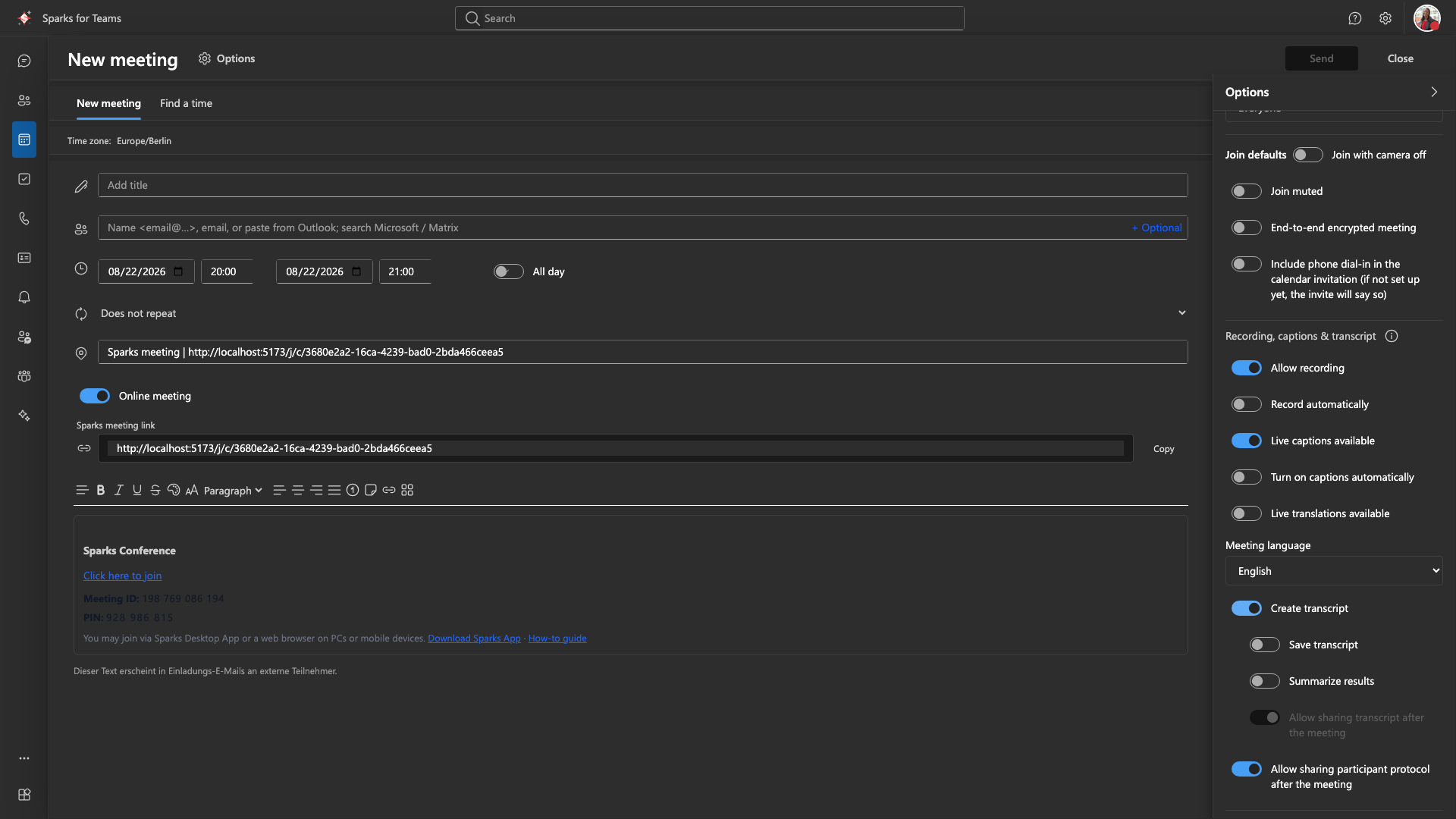
In the New meeting dialog, additional options appear when Online meeting (Sparks) is on. Drawer title: Options; expand More options.
Where to find the options
- Calendar → “+” / double-click → enable Online meeting
- Open the right-hand Options drawer → More options
Meeting type
| Type | Description |
|---|---|
| Standard | Usual Sparks meeting |
| Town Hall | Large event (plan/add-on dependent) |
| Webinar | Registration/approval; join defaults often camera/mic off |
See Webinar registration.
Outlook add-in
The same meeting options are in the Sparks Outlook add-in task pane Sparks Meeting. Guide: Outlook add-in.
Access and lobby (online meeting only)
Section Access and lobby:
| Topic | Meaning |
|---|---|
| Who can join | Link / signed-in / invite-only, etc. |
| Who waits in the lobby | Nobody, externals only, or everyone |
| Co-moderators | Selected attendees with moderator rights |
| Meeting password required to join | Optional; password before pre-join |
Server enforcement: When you join, the app requests a LiveKit token from the Vista node (POST /api/get-token). If the Sparks appointment is stored on that same node (local appointments API / Postgres), who can join and the participant list are checked there; otherwise no token is issued. If the appointment exists only in the external appointment scheduler with no local row, this check does not run on the node.
In-meeting participation
Under More options, among others:
- Meeting chat, Polls, Q&A, Reactions
- Who can present? (presenter rights)
Polls before and after the appointment (online meeting)
When editing an appointment with a Sparks online meeting, More options includes a Polls section:
| Phase | Feature |
|---|---|
| Preparation | Organizer creates drafts for quick polls or questionnaires (Matrix meeting chat is created on first use if needed) |
| In meeting | Launch drafts; active polls in the drawer; participants see active quick polls in the stage dialog |
| After meeting | Calendar context menu or Calls → Call log → Poll results (overview, CSV export) |
Details: Polls tab, Meeting roles.
Join defaults
For online meetings you can set defaults such as:
- Camera off when joining
- Microphone muted when joining
- Start with end-to-end encryption (when supported by the deployment; see End-to-end encryption)
For webinars, some of these defaults may be fixed for moderation reasons.
Recording, captions, language, transcript
This section depends on your organization’s plan (e.g. whether recording/transcripts are licensed). If not available, controls may be disabled or show a notice.
| Option (short) | Purpose |
|---|---|
| Allow recording | Whether recording is permitted in principle. |
| Start recording automatically | Recording starts with the meeting (if allowed). |
| Live captions available | Participants can turn on live captions. |
| Live captions automatic | Captions turn on automatically (e.g. for the organizer). |
| Translated captions available | Translated live captions (when the service supports them). |
| Meeting language | Spoken language for recognition/captions (supported language codes). |
| Create transcript | A meeting transcript should be produced. |
| Save transcript | Transcript is retained after the meeting (depends on backend). Requires Create transcript. |
| Summarize results | Optional AI/summary feature (when available). Requires Create transcript. |
| Allow post-meeting share of protocol | Moderators may share the participant protocol (who joined this instance) with selected people after the meeting. Default: allowed unless turned off. |
| Allow post-meeting share of transcript | Moderators may share the stored transcript after the meeting. Requires create + save transcript; default allowed unless turned off. |
Note: Live captions during a meeting and the saved transcript in call history are separate features; visibility and retention follow server policies. The current caption line may still change while someone is speaking; only finalized lines are stored. Display and roles: Meeting roles.
Basic / free organization plan
On the Basic (free) tier, the client disables recording, transcript options, and start with E2EE in this dialog (with explanatory hints). You can still schedule a calendar block longer than 60 minutes, but the active meeting session is limited to 60 minutes — the invitation may include a notice about the session cap. Paid plans unlock recording, transcripts, E2EE, and longer sessions per your organization's entitlements. If the organization has disabled Matrix E2EE under Security policies, “Start with E2EE” is also hidden.
Participant limits (plan)
When joining, the server checks whether the meeting still has capacity. Default limits (your operator may adjust them):
| Plan / meeting type | Typical participant cap |
|---|---|
| Basic (free) | 100 |
| Paid (standard meeting) | 300 |
| Paid + webinar/town hall add-on | 500 |
If the limit is reached, join fails — organizers should review plan or meeting type.
📸 Screenshot:
Sparks meeting and Microsoft Teams
With Microsoft Outlook connected, you can create a Microsoft Teams meeting in addition to a Sparks online meeting. What your organization uses (Sparks only, Teams only, or both) depends on deployment. Description and location fields in the Exchange event are filled or cleared with link text when online meetings are toggled, consistent with product behaviour.
Numeric meeting ID (PIN)
Sparks appointments may have a numeric meeting ID (PIN) used in invitation text or dial-in scenarios. Whether it appears depends on the client and API response.
Webinars
The Webinar type adds settings such as registration required, approval workflow, deadlines, and custom questions. See Webinar registration (German article; the product flow is the same in English UI).