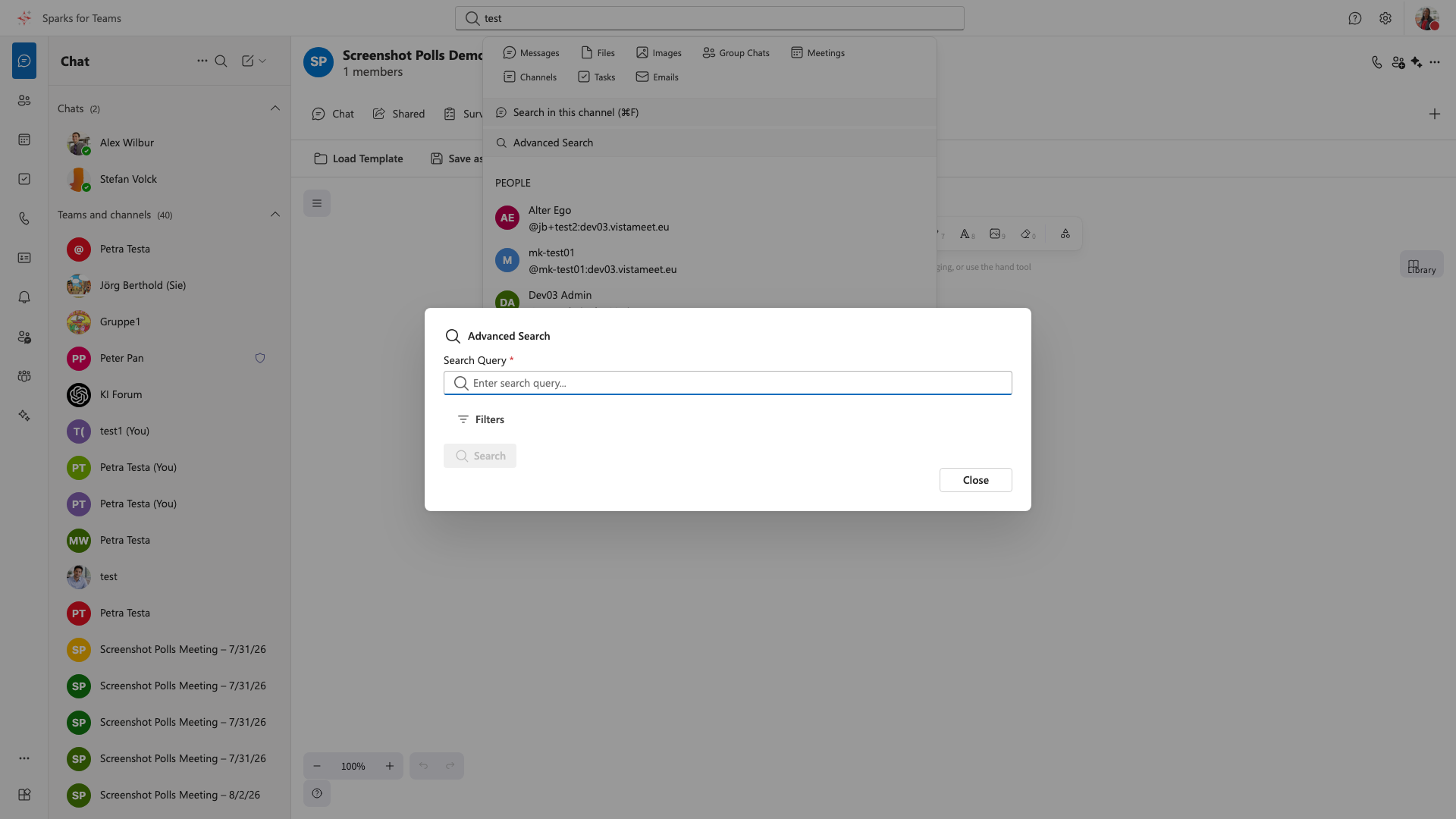
Dialog: Advanced Search
How to Open
- Ctrl+K (Windows/Linux) or Cmd+K (macOS)
- Or open search in top toolbar → select "Advanced Search"
Filters
Filters often start collapsed behind the Filter button. The search query is required.
| Filter | Description |
|---|---|
| Room | Limit to one room |
| Sender | Specific sender |
| From / To | Date range |
| File type | Images, documents, videos, audio |
Reset filters clears all filters. Search runs the query.
Workflow
- Enter a search term
- Optionally open Filter and set filters
- Search / Enter
- Click a result → jump to the message
Tips
- Combine filters for precise results
- Reset filters clears all filters
- Encrypted rooms: Search requires key backup; otherwise encrypted messages cannot be searched
- Matrix Search API: Full-text search within rooms
Limitations
- Search runs on Matrix server; large rooms may take longer
- In E2EE rooms: Key backup must be set up
📸 Screenshot: