Area: Chat (Matrix)
Path: /
Icon: Chat icon in the sidebar
Overview
The Chat area is the Matrix-based messaging space of Sparks. Here you manage chat rooms, conduct conversations, and use Spaces for hierarchical organization.
📸 Overview:
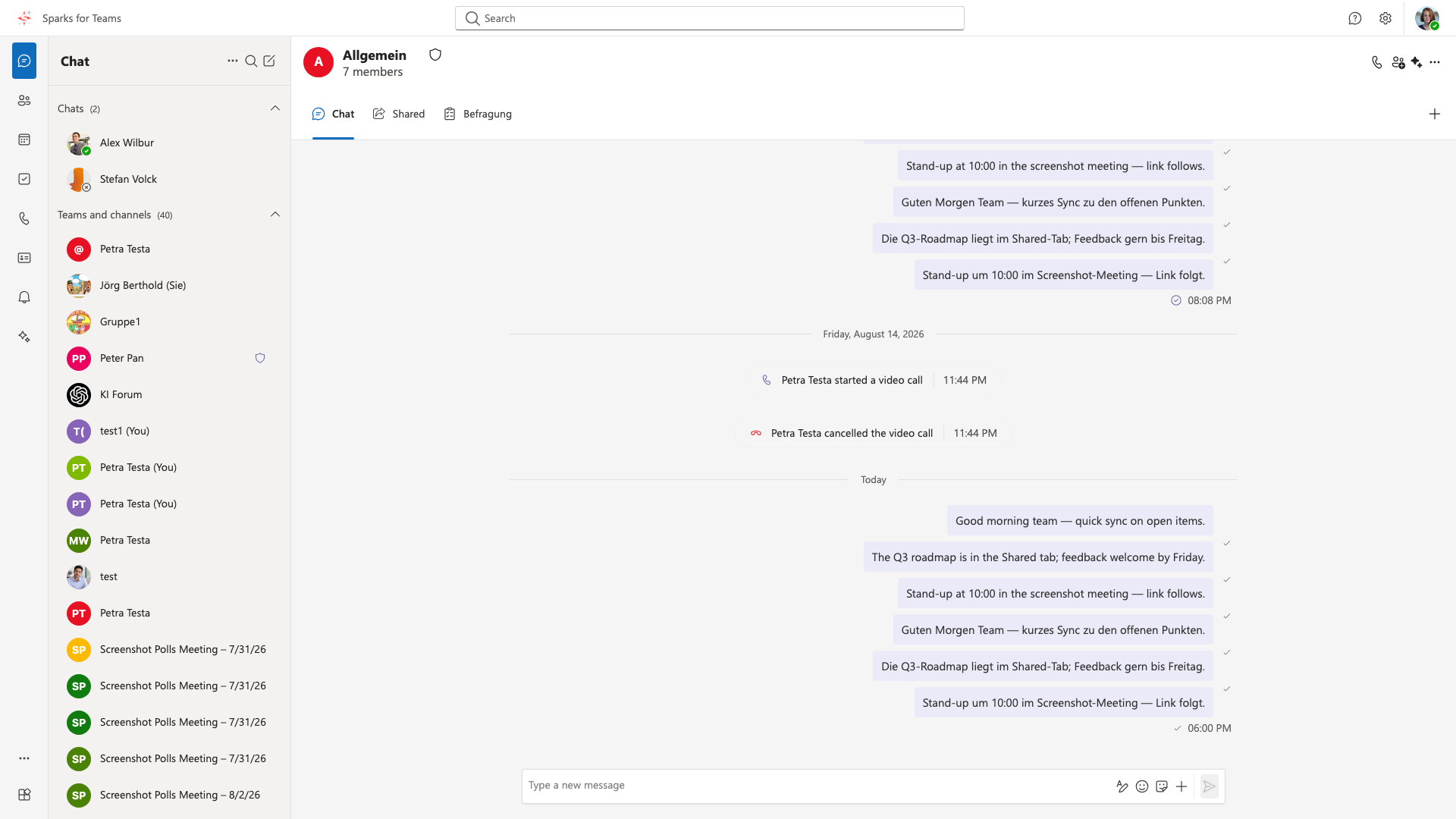
Layout
| Element | Description |
|---|---|
| Chat list (left) | All Matrix rooms, sorted by activity; unread badges; optional New message row (Settings → Chats) |
| Tab bar | With room open: conversation, optional Shared/Files, Polls, Whiteboard, Custom Tabs |
| Main area | Message history; room name and settings at top |
| Message input (bottom) | Text field, attachments, emojis |
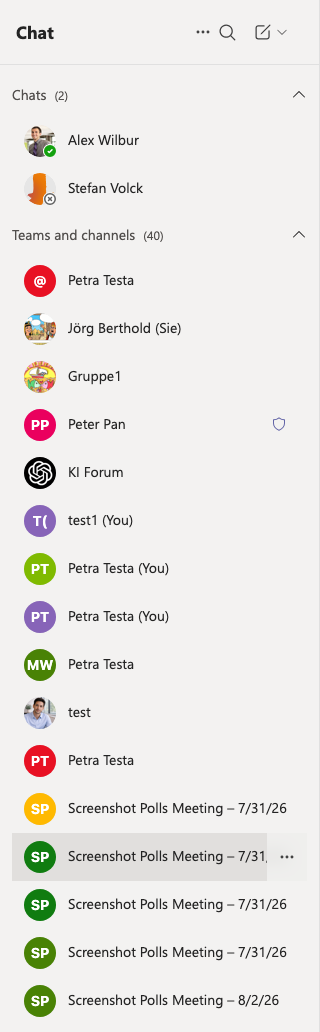
Excerpt – chat list
📸
Excerpt – message input
📸

In the composer: text, formatting, emoji, GIF/sticker, attachments (+), and send. Stickers are sent as Matrix m.sticker (interop with Element). Voice messages start from the microphone control; video clips via Record video clip (see below). You can also schedule a message and set delivery options.
Main Features
Sending and Managing Messages
- Click a room in the list
- Type your message
- Enter to send, Shift+Enter for new line
- Attachments via + or drag & drop (images, files, videos)
Voice messages & transcription
SPARKS supports voice messages in Matrix chats — record, play back, and optionally speech-to-text (STT).
Record and send
- Microphone icon in the message input → Record voice message dialog
- Start/stop recording, preview, send or discard
- Optional: Send with transcript — recognized text is sent together with the audio file
Outgoing voice messages are tagged as Matrix Voice Messages (MSC3245) so clients like Element show them correctly as voice bubbles.
Live preview: Supported browsers show live recognized text while recording. In the desktop and mobile app (Tauri), on-device recognition may also be used (iOS/Android).
Received messages: Under the audio player, tap Transcribe — text appears below the message and is cached locally (no repeat cloud call when reopening).
Privacy: Cloud STT sends audio via the Vista server to OVH AI Endpoints (Whisper, EU); the app shows cost and processing notices. In E2EE rooms, audio is decrypted on your device first. Your organization may restrict or disable cloud STT — device-only options may remain.
Technical reference (Vistameet-Teams): KONZEPT_CHAT_SPRACHNACHRICHT_STT.md, KONZEPT_CHAT_SPRACHNACHRICHT_STT_TAURI_NATIVE.md.
Video messages (clips)
You can record short video clips in chat or attach a video file.
Record and send
- In the message input, open + (or the menu) → Record video clip
- Start/stop recording, preview, send or discard
- After sending, the clip often plays immediately from a local preview; once upload finishes, the stored version loads
Also: Attach video files via + / drag & drop. If playback fails (format, network, encrypted media), the bubble shows an error — retry or download the file.
Scheduled messages & delivery options
In the message input (menu / composer):
- Schedule message: pick a send time
- Delivery options: e.g. priority, request read receipt, force E2EE in supported rooms
Message Actions (Context Menu)
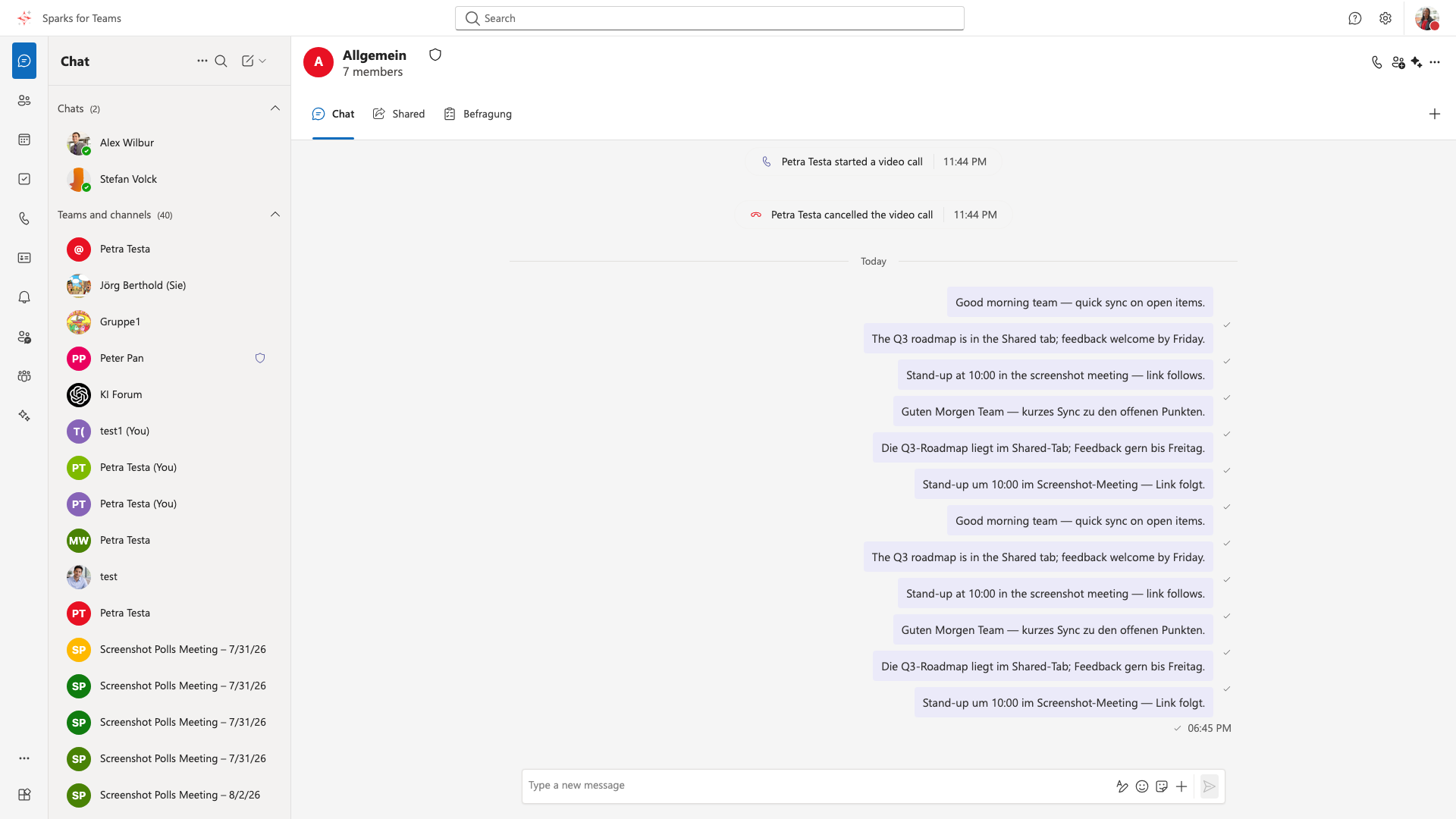
- Reply: Quotes the original message (Teams-style quote reply). A preview strip appears above the composer (“Replying to …”); X cancels. Sent replies show a quote chip in the bubble — click jumps to the original message (loads older history if needed). Works for text and attachments (image, file, voice, video clip, GIF/sticker).
📸 Reply thread:
- Edit: Your own messages only; edits are marked
- Delete: Your own messages only
- Translate: AI translation into the target language (Settings → Translation: ask / always / never)
- Forward: Send text to one or more other Matrix rooms (multi-select)
- Pin: Pin important messages at top
- Reactions: Add emoji (hover or click)
Encryption
- Matrix rooms support end-to-end encryption
- Verification via Settings → Security
- Encrypted rooms show a lock icon
Keyboard Shortcuts
| Shortcut | Action |
|---|---|
| Ctrl+K / Cmd+K | Advanced Search / command palette |
| Ctrl+Shift+M / Cmd+Shift+M | Focus message input |
| R | Reply to the hovered / focused message (not while typing in the composer) |
| Enter | Send message |
| Shift+Enter | New line |
Tabs per Room
Each chat room can have tabs – additional panels next to the conversation:
- Shared / Files – media and files shared in the room (WebDAV/Sparks Cloud when available)
- Polls – surveys
- Whiteboard – Excalidraw
- Custom Tabs – external URLs / apps
See Add Tab.
Typical Workflows
- Create room: "+" in chat list → Create Room
- Start a new conversation: New message row at the top of the list (when enabled under Settings → Chat and channel list) or "+"
- Manage members (group chat): Open room → ⋯ (top right) → Manage members → Room Settings (Members tab)
- Invite people (quick action): ⋯ → Add people or room info → Add People (Matrix + MS Entra, optionally via email/Teams)
- Configure room: ⋯ → Room settings or click room name → Room Settings
- Hide chat: Right-click / menu on the room in the list → Hide chat — history is kept; restore under Hidden chats. This does not leave the room.
- Pin / favorites: Room menu → Pin to top — writes the Matrix tag
m.favourite(also visible in Element under Favourites) - Low priority: Room menu → Move to low priority — Matrix tag
m.lowpriority(section “Low priority” in the list) - Mute: via the room menu in the list
- Schedule a meeting: start a calendar event from chat context where offered
- Forward a message: Context menu → Forward
- Reply to a message: Context menu → Reply, or hover the message → R — see Message Actions
- Organize rooms: Use Spaces, drag & drop rooms
System lines (meetings)
After meetings, the linked chat room may show system lines:
- Meeting transcript is available — opens Call log focused on the transcript
- Meeting recording is available — download of the server-side recording (presigned URL; sign-in required)
Sparks-native polls (org.sparks.*) and incoming Element polls (MSC3381 m.poll.*) appear in the timeline; you can vote on Element polls in Sparks.
Notifications
New messages in non-active rooms or @mentions trigger desktop banners (Teams-style toast / overlay), depending on Settings → Notifications. Reactions on your messages and replies in followed threads have their own categories. Muted rooms send no banners.