Dialog: Incoming Call
How to Open
- Appears automatically on incoming Sparks voice or video call (call button in chat)
- Also appears for Element Call (MatrixRTC) when settings use “Ring and answer in Sparks”
- Card overlay on the main app (foreground) or a dedicated window on desktop when Sparks is in the background
- Tauri desktop: When the app is in the background, a separate call window opens on the monitor that hosts the main window
Other Element/Matrix modes: With MatrixRTC Ignore, Decline, or Notify only, and for legacy VoIP, this dialog does not appear (optional desktop alert or auto-decline only). See Element Call and federation.
Distinct from chat notifications: Messages and meeting reminders use Teams-style in-app toasts (see Settings → Notifications). Ringing incoming calls (Sparks and MatrixRTC “answer”) appear only in this dialog — not in the toast stack. While a call is ringing, message/meeting toasts are suppressed.
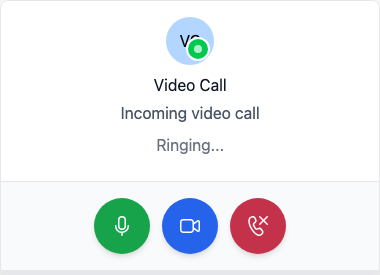
Dialog Content
| Element | Description |
|---|---|
| Caller | Name or number, optional avatar and presence badge |
| Call type | Voice or video (label under the name) |
| Status | e.g. “Incoming video call”, ring progress |
| Buttons | See actions below |
Actions
| Action | Description |
|---|---|
| Answer with audio (microphone icon) | Accept call with camera off |
| Answer with video (camera icon) | Accept with camera on; disabled for voice-only calls |
| Decline (red icon) | Reject call; may appear as missed in Call log |
Presentation by Platform
| Situation | Behavior |
|---|---|
| App in foreground (web/desktop/mobile) | Floating card in a corner over the main UI |
| Desktop app in background (Tauri) | Separate call window with the same card (gray surface, centered) |
| Web in background | OS/browser notification as fallback; click returns to app and dialog |
Notifications
- Desktop (Tauri, background): Dedicated call window — no Teams-style toast for calls
- Desktop/web (background): System notification may appear in addition; click opens the dialog
- Mobile: Push notification (when configured)
Ringtone and Presence
- If your status is Busy, Do not disturb, or similar, the incoming-call ringtone is usually muted (the dialog can still appear).
- Mobile exception: Under Settings → Notifications and Activity, Ring on mobile when Busy or Do not disturb (default On) keeps the ringtone on phones/tablets even in those states; turn it Off to match desktop behavior.
Permissions
- Microphone: Required for voice calls
- Camera: Required for video calls
- If denied: you can still accept, but without audio/video until permissions are granted in system settings
End-to-End Encryption
- With E2EE enabled: shield icon indicates encrypted connection
- Both participants must have E2EE enabled under Privacy
📸 Screenshot:
Related Pages
- Element Call and federation — Element / MatrixRTC (including “answer in Sparks”)
- Area: Calls
- Settings → Notifications
- Dialog: Join Meeting
- End-to-End Encryption