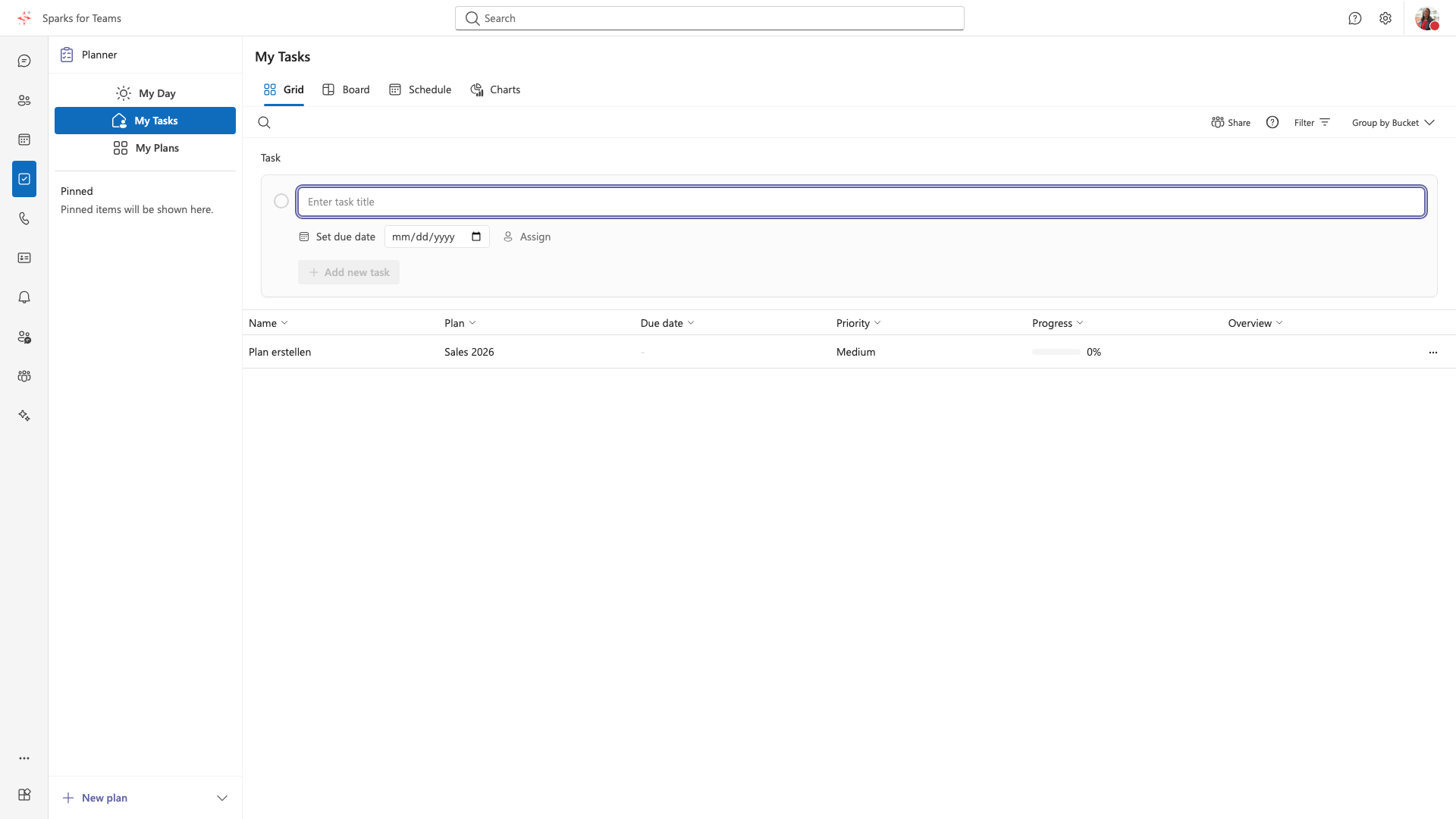
Dialog: Create Task
How to Open
- In Planner: “New task” / “+” (board column, grid)
- Opens the task detail dialog (create)
Also in chat: context menu → Save as task (often Microsoft Planner: title, plan, bucket) — a shorter separate dialog.
Fields
| Field | Required | Description |
|---|---|---|
| Title | Yes | Task name |
| Plan + Bucket | Yes when plans exist | Target plan and column (Microsoft/Sparks Planner) |
| Due date | No | Including time where supported |
| Assignments | No | Assign people |
| Description | No | Details / checklists |
| Priority | No | Urgent … Low |
| Progress | No | Percent / status |
| Labels/categories | No | When supported |
You may need to create a plan first if none exist.
Bucket Selection (Microsoft Planner)
- Buckets = Kanban board columns (e.g. "To Do", "In Progress")
- Select target bucket when creating
- Task appears immediately in chosen column
Provider Selection
With multiple task backends (Microsoft Planner, Nextcloud, OX):
- Choose target provider
- Task is created there
- Default provider can be set in Settings
Workflow
- Click "+ Add task"
- Enter title (required)
- Optionally set due date, assignment, bucket
- Add description and priority if needed (provider-dependent)
- Choose provider (when multiple)
- Create
📸 Screenshot: