Fix meeting connection problems
Last updated: July 2026
If a Sparks meeting does not connect properly, you cannot see others, or others see your video as black, the cause is usually devices, network, or parallel meeting apps — not simply being in the “wrong room.”
The app detects common patterns and shows in-meeting hints (banner at the top) or guidance on Pre-Join / recovery dialogs.
Typical symptoms
| What you see | Likely cause |
|---|---|
| You see yourself but no one else | Incomplete connection or camera/mic conflict |
| Others are present but no video | Network, subscribe delay, or blocked media |
| You appear alone in the meeting | Others have not joined yet or wrong link |
| Black video for others while you look fine | Camera held by another app or driver issue |
| Meeting drops shortly after join | Device in use, permissions, or network |
What the app shows you
| Situation | In-app help |
|---|---|
| Pre-Join | Note about parallel Teams/Zoom; test devices |
| Join fails | Clear message (sign-in, password, invite, network) |
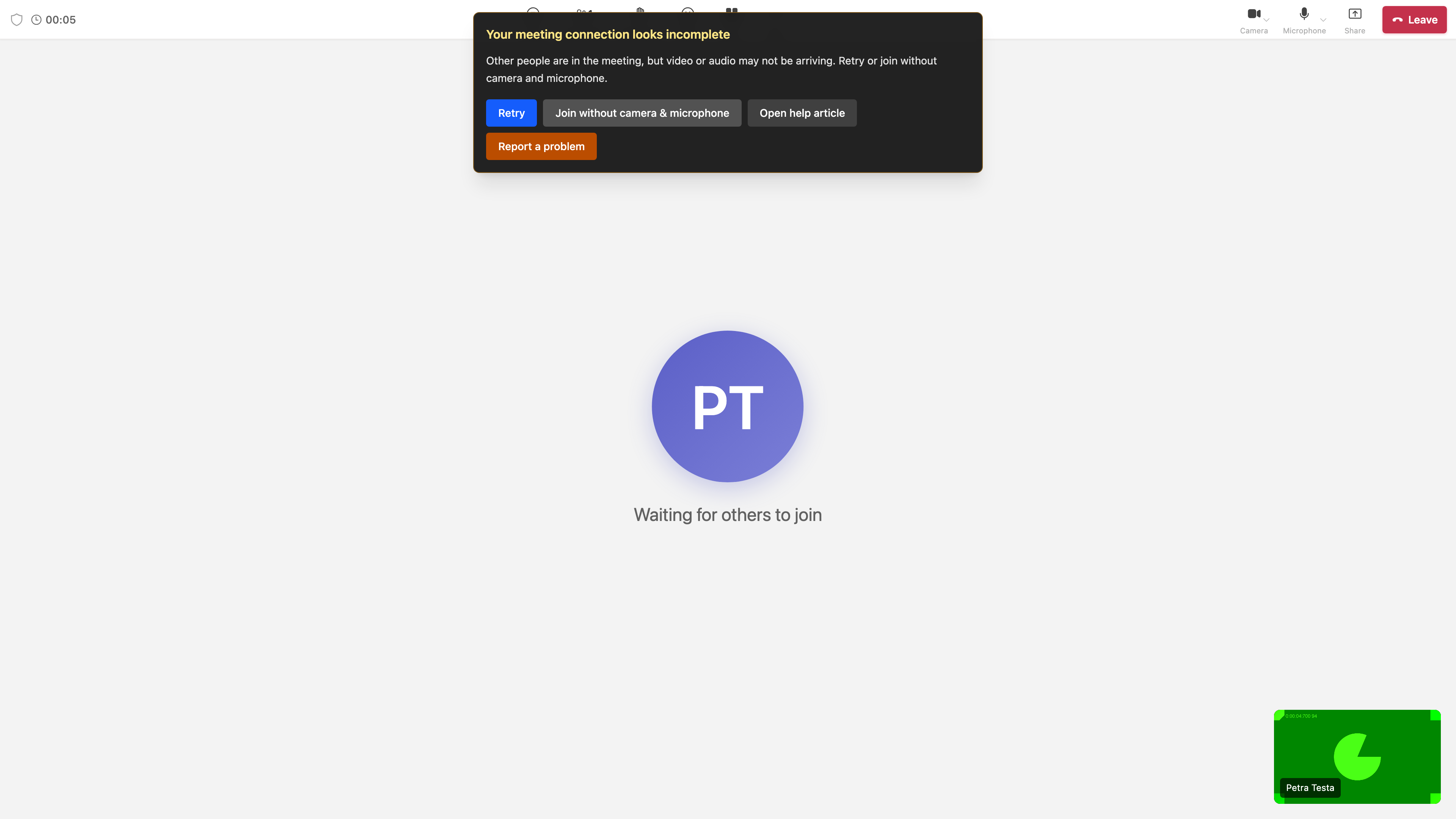
| In meeting (~15 s) | Amber help banner when a problem is detected |
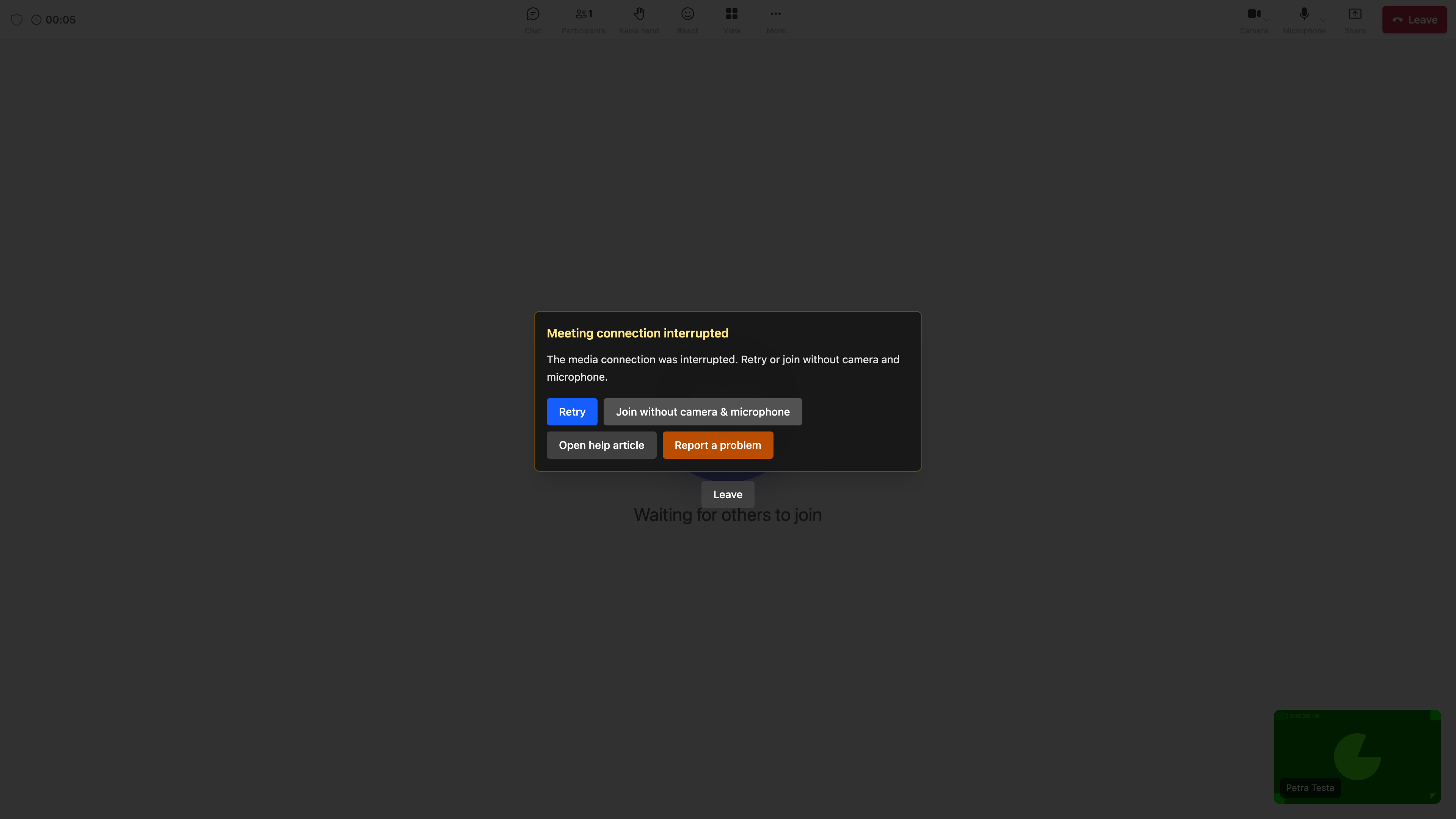
| Connection interrupted | Dialog: Retry / without camera & mic / Leave |
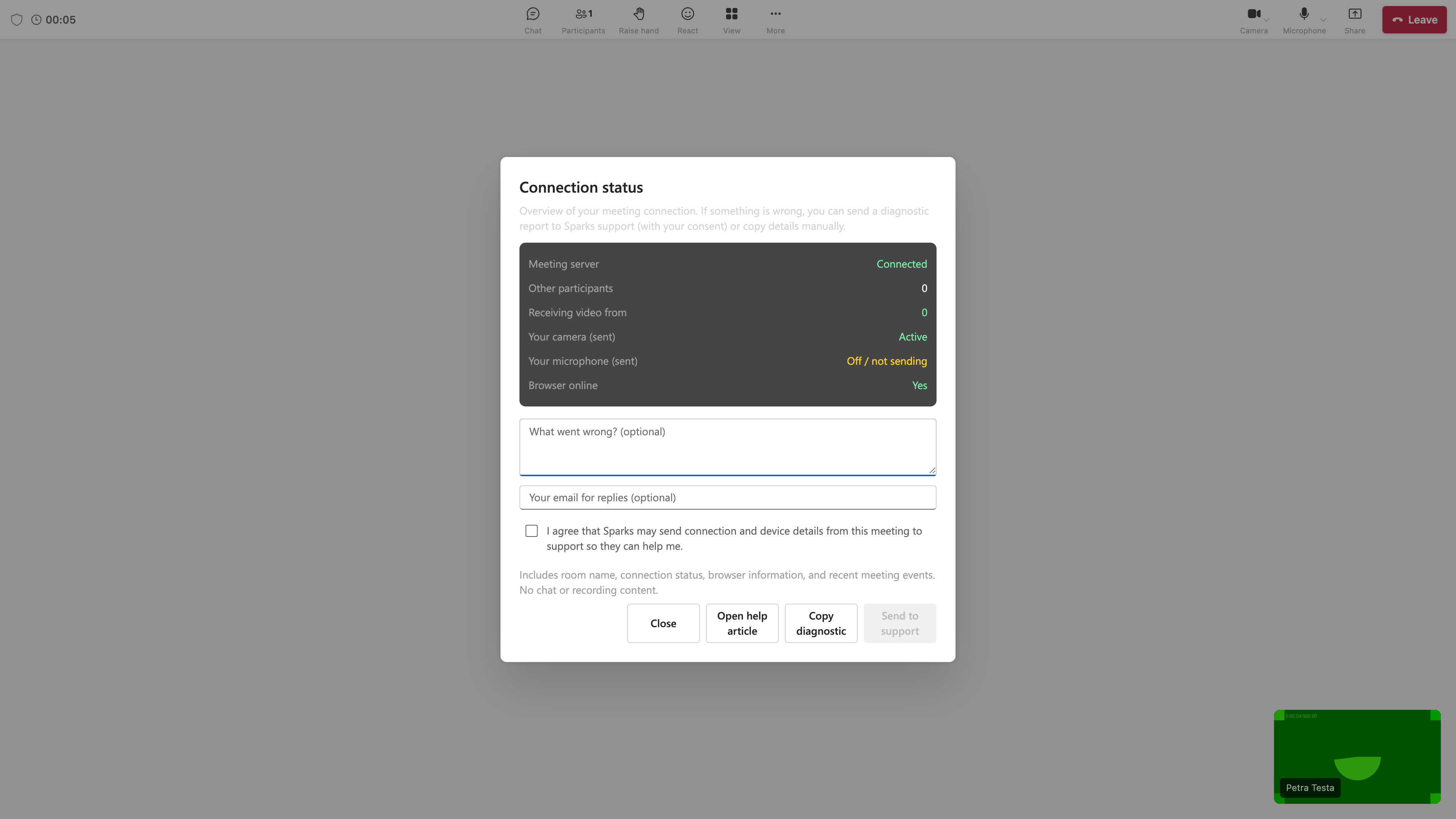
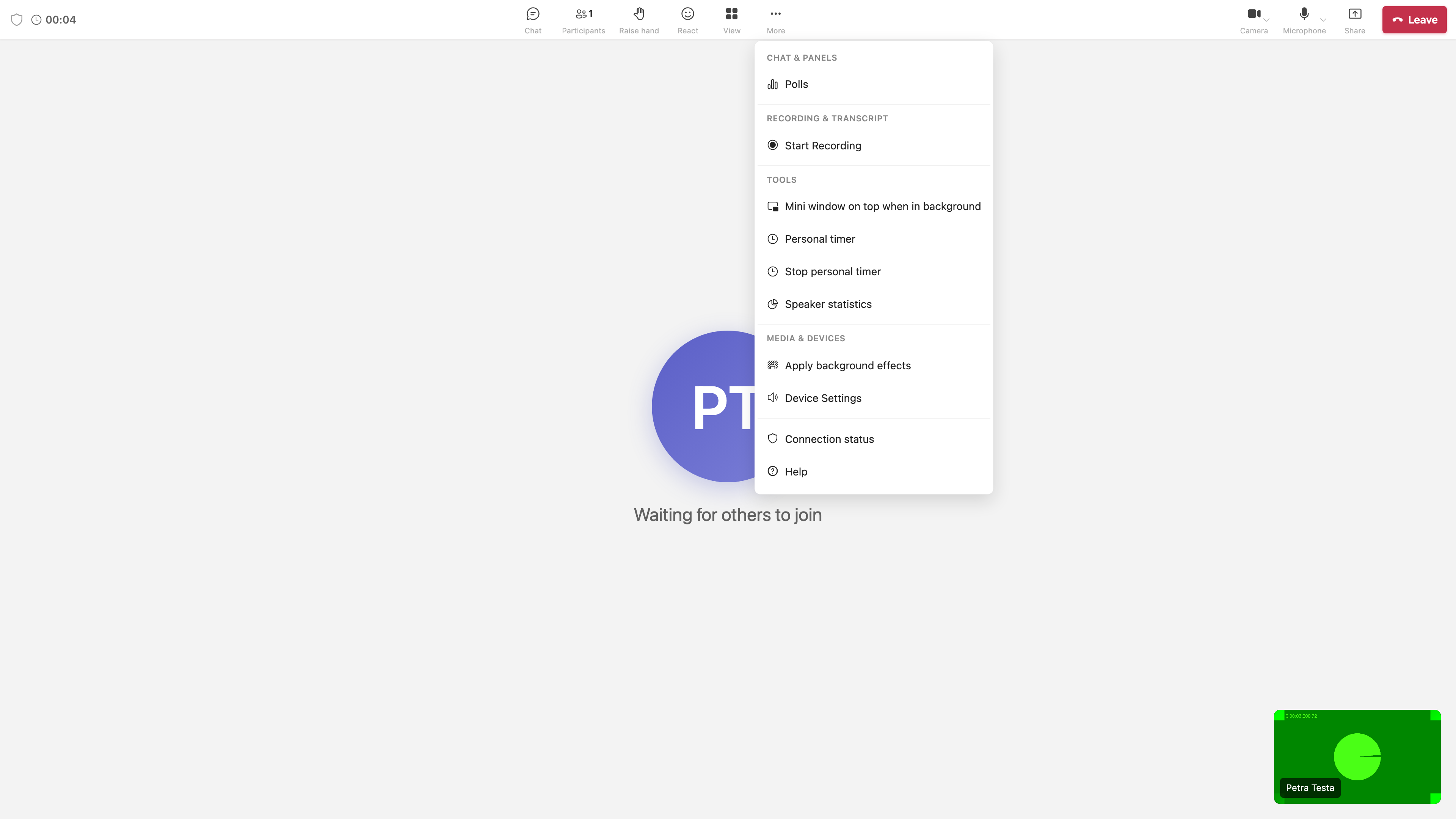
| Meeting menu → Connection status | Overview (server, participants, camera/mic) + Copy diagnostic / Send to support |
📸 In-meeting help banner:
📸 Connection status:
📸 More menu:
📸 Recovery overlay:
Use Open help article in these dialogs to open this page or Parallel meeting apps.
Step by step
1. Wait briefly
In larger meetings, video may appear a few seconds after join. If nothing appears after 15–20 seconds, the automatic hint should appear.
2. Join without camera & microphone
Recommended if you are also in Teams/Zoom or unsure:
- On Pre-Join or in the help dialog, turn camera and microphone off.
- Join — you can still see and hear others.
- Enable media later when the other app releases devices.
3. Check parallel meeting apps
Microsoft Teams, Zoom, or another tab with camera on can block Sparks. See Parallel meeting apps.
4. Browser & permissions
- Allow camera/microphone for this site (lock icon in the address bar).
- Only one tab with the same meeting (otherwise “meeting open in another tab”).
- Use a current Chrome, Edge, Firefox, or Safari; Epic Privacy Browser does not support WebRTC meetings.
5. Network
- Briefly disable VPN or try another network.
- Corporate firewall: WebSocket and WebRTC (UDP) must be allowed to the meeting server.
6. Reconnect
In the help banner or recovery dialog, click Retry. If problems persist: Leave, reload the page, join again.
Join denied (password, sign-in, invite)
| Message | What to do |
|---|---|
| Sign-in required | Sign in and try again |
| Not invited | Contact the organizer; check invitation or guest list |
| Password required | Enter the password from your invitation |
| Registration required | Complete webinar registration and wait for approval |
Connection status & contact support
In the meeting: ⋯ More → Connection status
- Shows whether the meeting server is connected, how many participants are present, and whether camera/microphone are active.
- Copy diagnostic copies a short technical summary to the clipboard (browser, connection state, recent events) for a support ticket.
- Send to support submits the diagnostic directly to Sparks support (when your operator has enabled the feature):
- optional comment (what happened?)
- optional reply email (prefilled with your account email)
- consent checkbox confirming that technical meeting data (room, connection state, browser, recent events) may be sent for troubleshooting
Do not paste passwords or confidential content into comments or tickets.