Parallel Meeting Apps (Teams, Zoom & Camera Conflict)
Last updated: July 2026
If you are simultaneously in another video call (e.g. Microsoft Teams, Zoom, or another browser tab) and open a Sparks meeting, camera or microphone access may fail — especially on Windows.
Typical behavior
- You join the Sparks meeting and appear briefly on video.
- Then the connection drops, an error appears, or the meeting window closes.
- Your other call in Teams usually continues normally.
This usually means two apps are competing for the same camera. On many devices (especially built-in webcams), Windows allows only one app at a time to use the camera.
What Sparks shows you
The app guides you in several places:
| Situation | What you see |
|---|---|
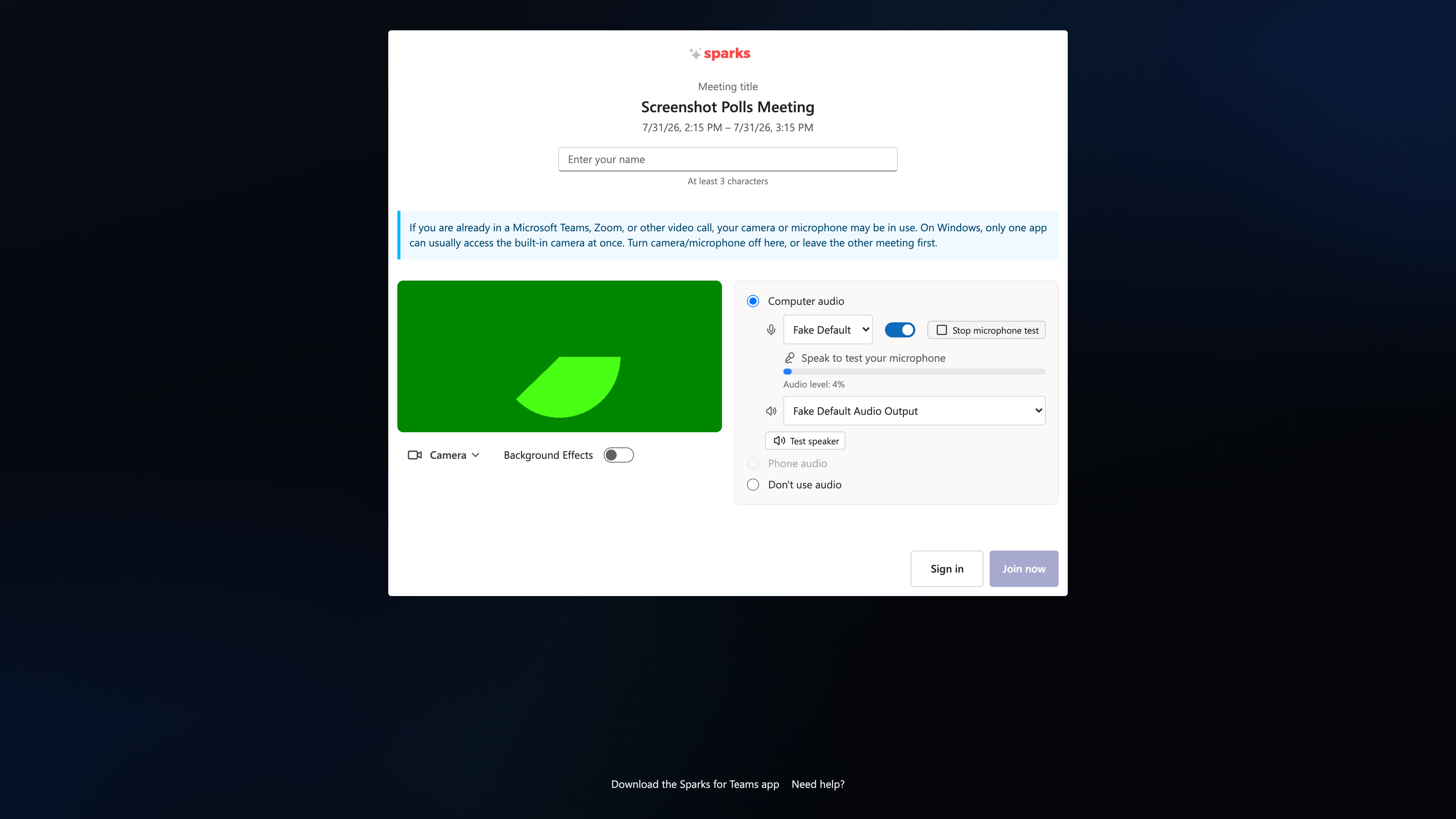
| Before joining (Pre-Join) | Blue note when camera or mic is on: a parallel call may block devices |
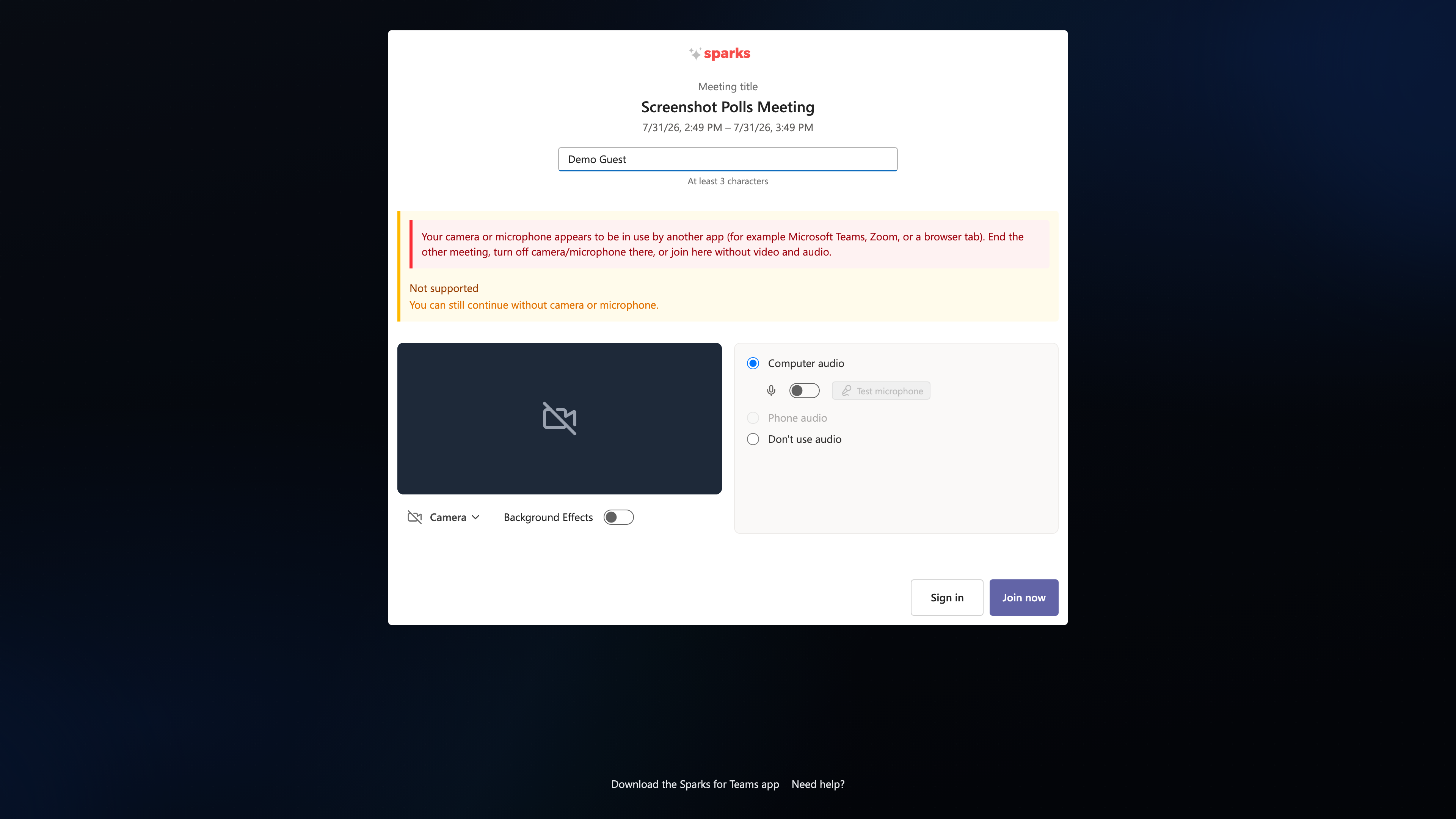
| Join fails | Explanation mentioning Teams/Zoom; button “Join without camera & microphone” |
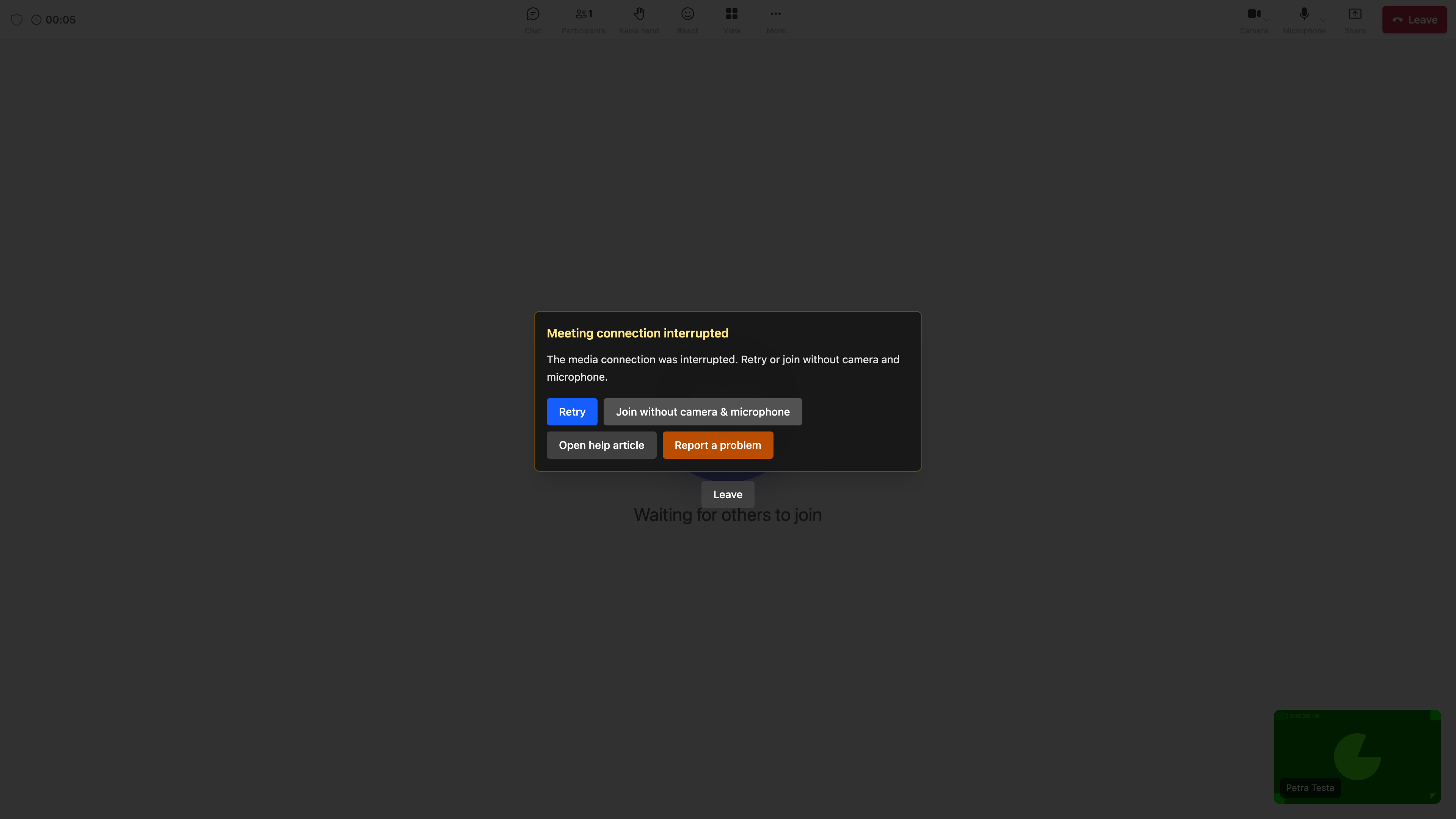
| Connection drops after join | Dialog with a short checklist and the same options (Retry / without media / Leave) |
| In meeting (~15 s) | Amber help banner for incomplete connection (you see yourself, not others) |
📸 Pre-Join – parallel apps warning:
📸 Join failed (device in use):
📸 Recovery after disconnect:
What you can do
Option A — Join Sparks without camera and microphone (recommended with an active Teams call)
- On the Pre-Join page, turn camera and microphone off.
- Join the meeting — you can still see and hear other participants.
- Enable media later when the other app releases the devices.
Or use “Join without camera & microphone” if an error is already shown.
Option B — End the other call or turn off media there
- In Microsoft Teams (or the other app), disable camera and microphone, or leave the meeting.
- In Sparks, click Retry or reopen the meeting.
Option C — Use a different device
If available: use a USB webcam or headset for Sparks while Teams uses the built-in camera.
Check Windows settings
Under Settings → Privacy & security → Camera / Microphone:
- Allow access for Sparks (browser or desktop app) and Microsoft Teams.
- Permissions alone do not fix exclusive access: both apps may be allowed, but only one can use the built-in camera at the same time.
FAQ
Why doesn’t Teams kick me out but Sparks does?
Teams often holds the camera first. Sparks loses media access and disconnects — not the other way around.
Is mute in Teams enough?
Mute often affects only the microphone. If your camera is still on in Teams, the conflict may remain.
Does this apply to Zoom / Google Meet?
Yes — any app that exclusively locks camera/mic can cause the same pattern.